
Upload your image
Choose a clear JPG, PNG or WebP image, up to 10 MB. Your original file stays unchanged.
Give your photo a new setting while asking AI to preserve its subject, pose and clothing.
Sign in before adding your photos. You can explore the example effects now; your selected effect will be kept.
15 credits per image
Photos are sent for processing when you run a tool. Privacy details
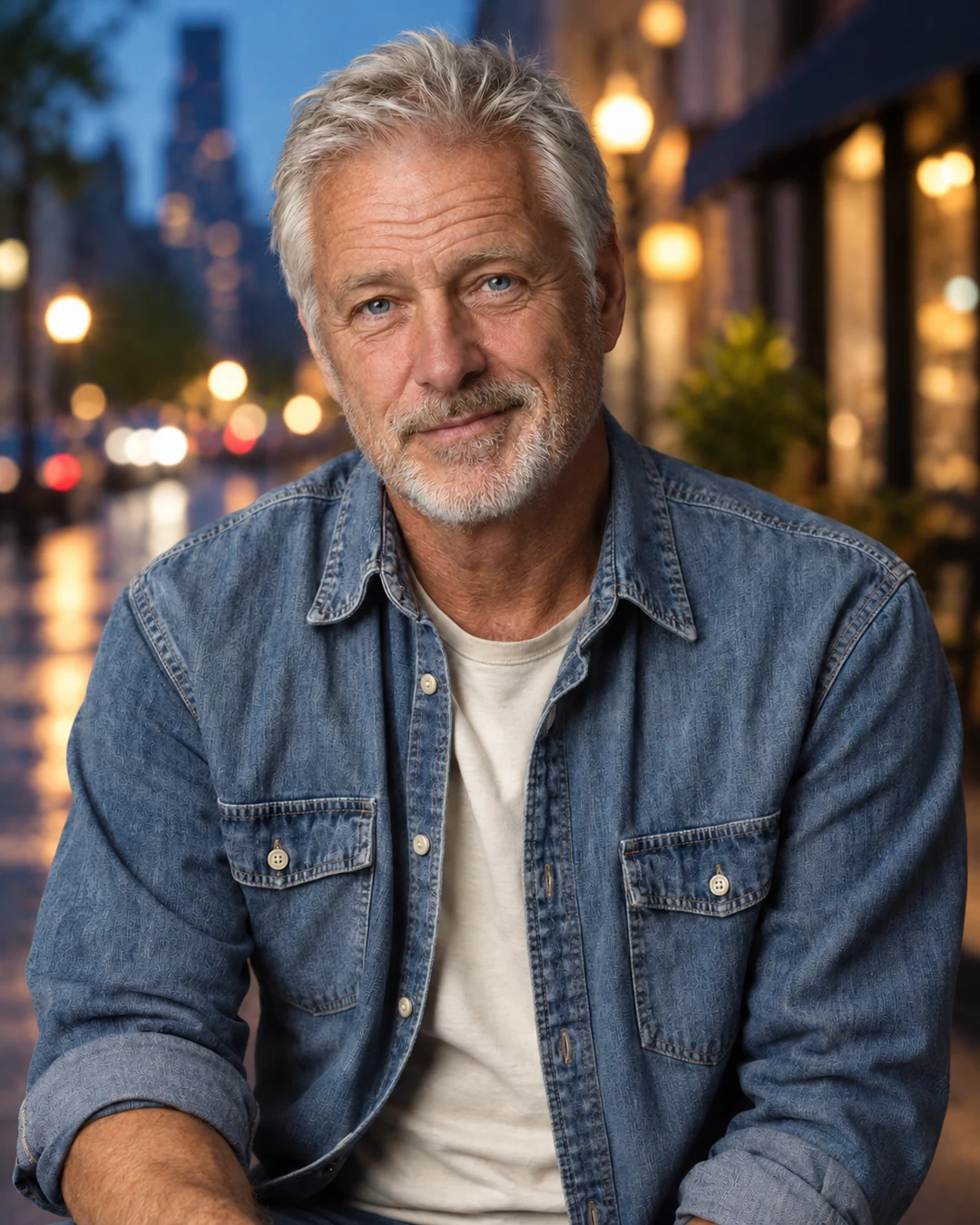
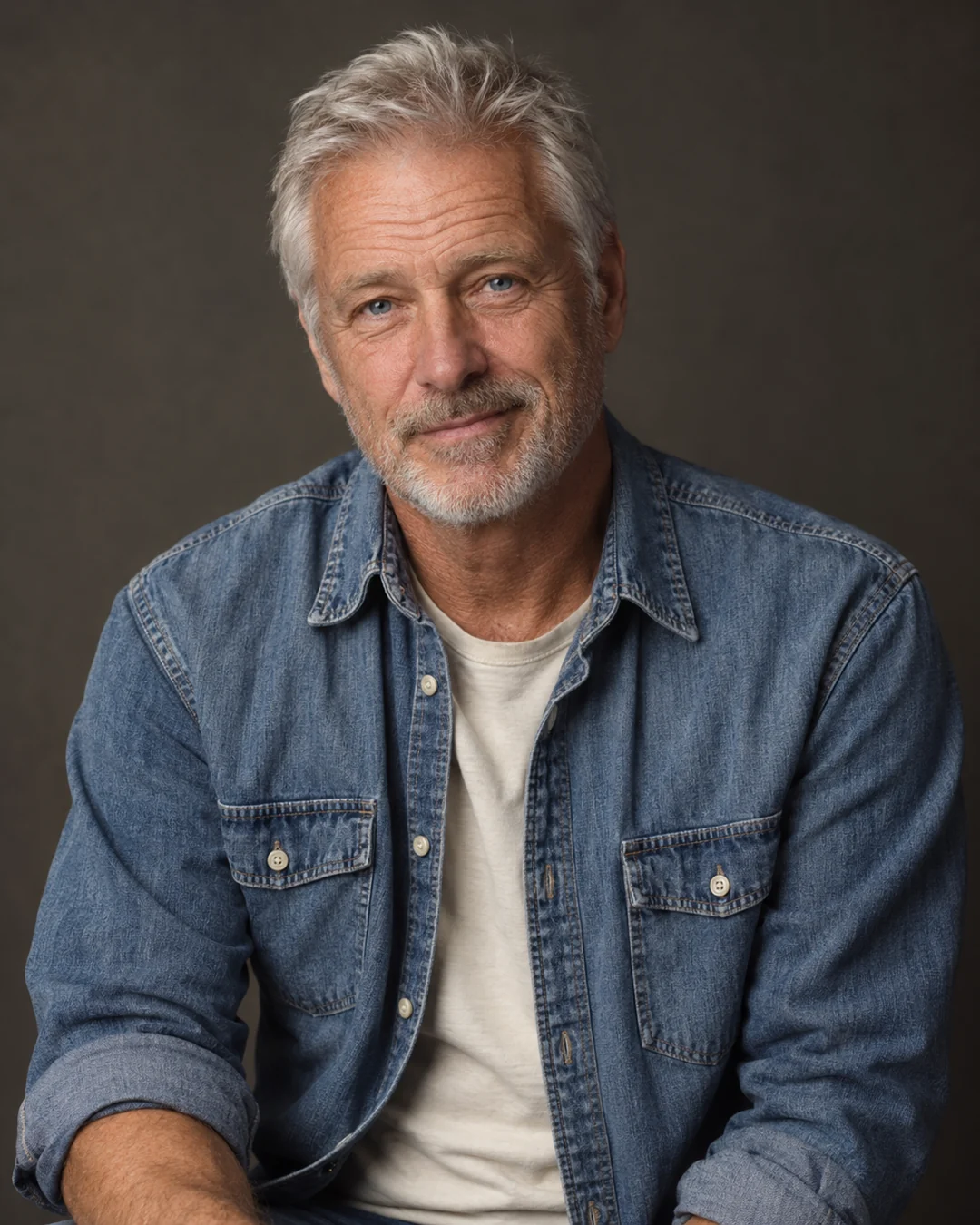 BeforeAfter
Upload your photo and choose City, Beach or Studio to generate a new scene around the subject. Sevli asks AI to keep the person, pose and outfit as references while adapting the surroundings. The result is a new image, not a transparent cutout. Compare faces, clothing edges and lighting with your upload before downloading.
Choose a clear JPG, PNG or WebP image, up to 10 MB. Your original file stays unchanged.
Choose the available options and generate. This is a single edit, with no model selection needed.
Review the result in place, compare it with your upload, then download. Return to Examples whenever you like.
Choose a city, beach or studio background. The edit requests matching light and shadows while using the original pose and clothing as references.
Subject edges, shadows and lighting may change. Compare the result with your original.
Review the subject’s edges, shadows and reflected color against the new scene before downloading.
A clear JPG, PNG or WebP image up to 10 MB. Choose a reference appropriate to this task.
Subject edges, shadows and lighting may change. Compare the result with your original.
Background replacement generates a new scene. Background remover creates a transparent PNG so you can place the cutout in your own layout.
These tools run one task at a time. Open Create to upload an image and refine it through conversation.
Open Create